Your Mac, wherever you are.
Lidless puts your Mac's screen on your iPhone, iPad or any web browser, and lets you use it from there. Every device is approved at the Mac, everything is end-to-end encrypted, and it's free.
The browser version at relay.getlidless.com needs the Lidless Mac app, which is coming soon, so for now it's only for testers. Your Mac has to be on and awake.
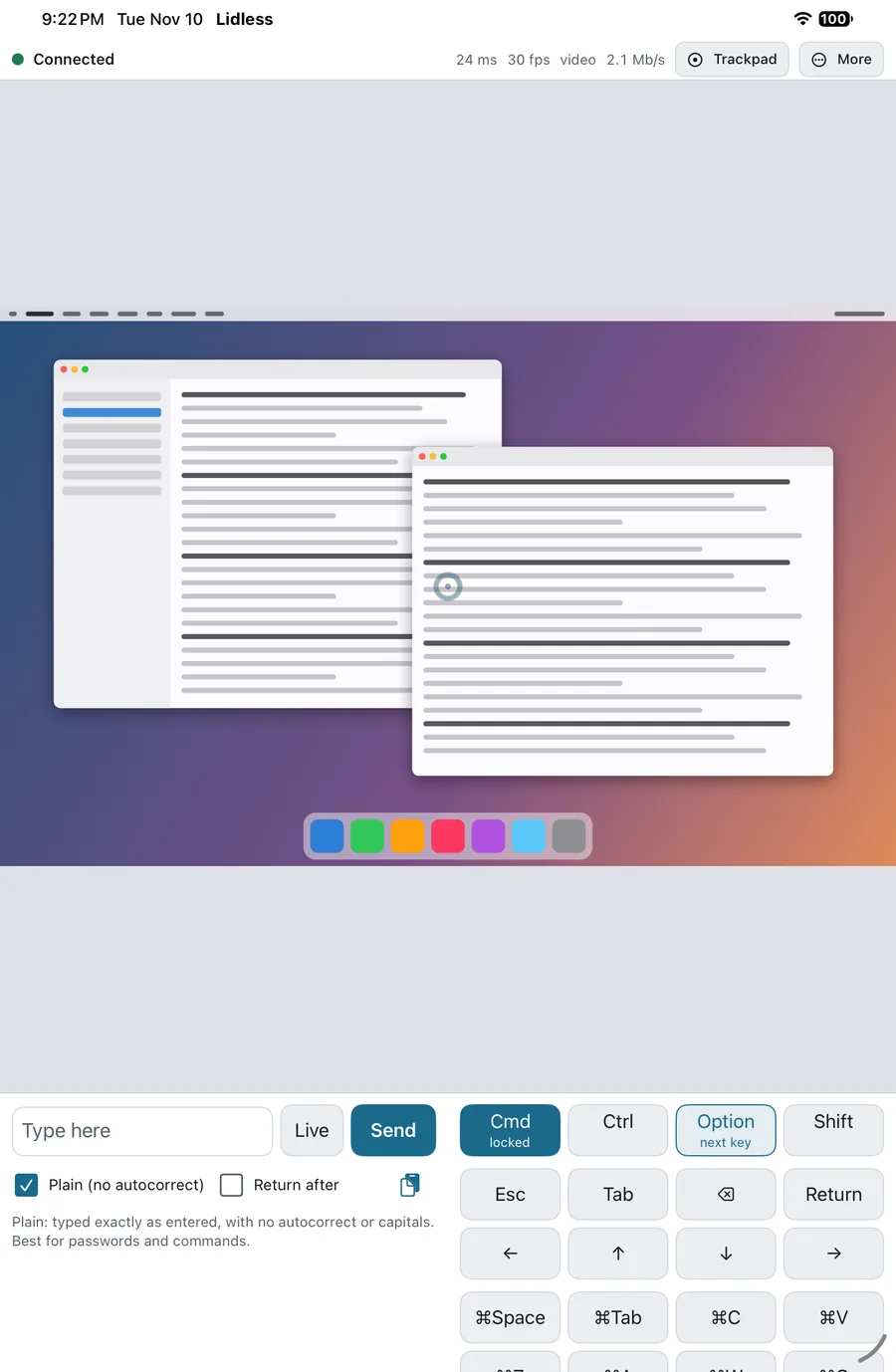


How it works
A small app in your Mac's menu bar sends its screen to your devices and takes your taps and typing back. It goes through the Lidless relay, or straight over your own Tailscale network if you use one.
Connect a new device in three steps
-
On your Mac, once
Install Lidless and allow Screen Recording and Accessibility. In the Lidless menu, choose , enter your email address and type the six-digit code we send you.
-
On your Mac, for each new device
Choose and confirm with Touch ID or your password. A window then waits 2 minutes for the new device.
-
On the new device
Open relay.getlidless.com in a browser, or the Lidless app on iPhone or iPad. Sign in with the same email address, give the device a name and press Continue. Both screens now show the same six digits. If they match, choose Approve on the Mac (and Codes match in the app). If they don't, choose Cancel.
Using Tailscale? On the Mac, choose and then in the Lidless menu. Open your Mac's tailnet address on the device and type the eight-character code the Mac shows.
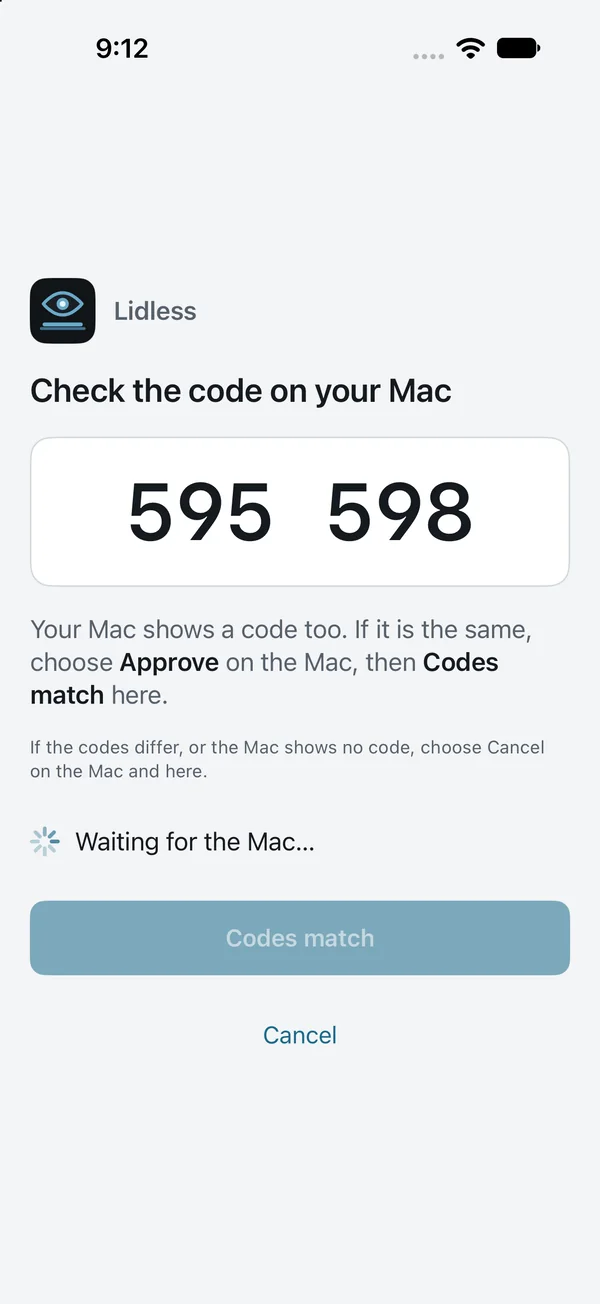
The same code on both screens means nobody is sitting in between. The Mac's alert is redrawn here; the phone is the real app.
Made for the screen in your hand
The iPhone and iPad app fits every size and orientation, down to the cover screen of a foldable. Here's what it looks like.
-
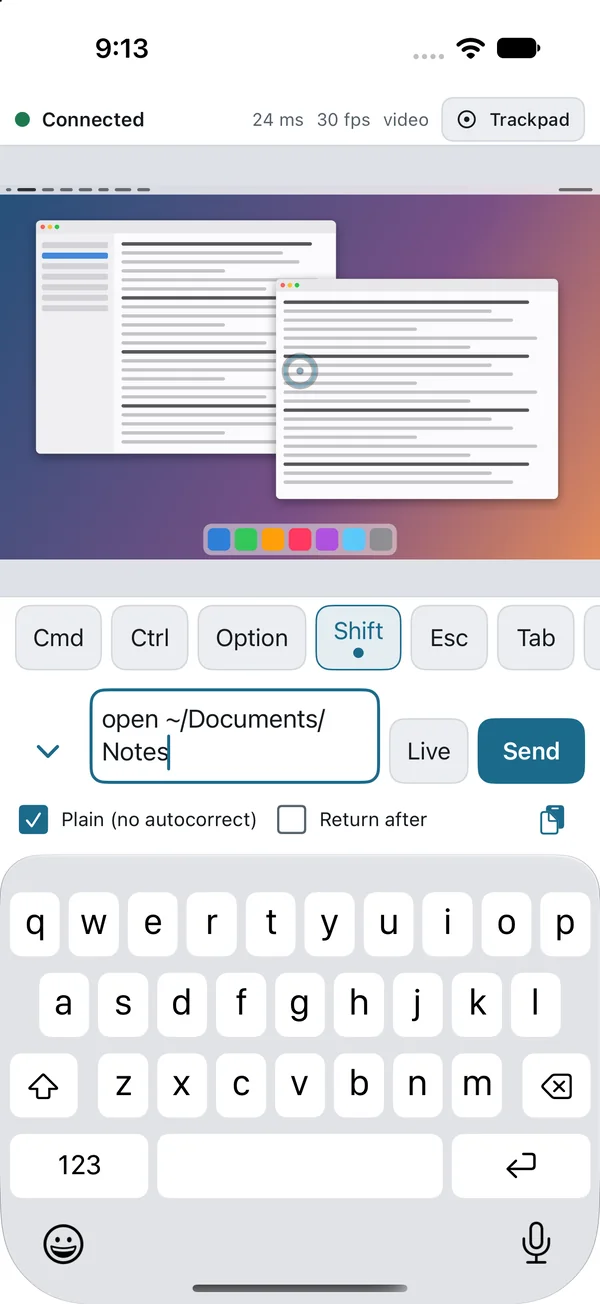
Type, or go LiveSend a line at a time, or let every key go straight to the Mac. Plain mode skips autocorrect. -
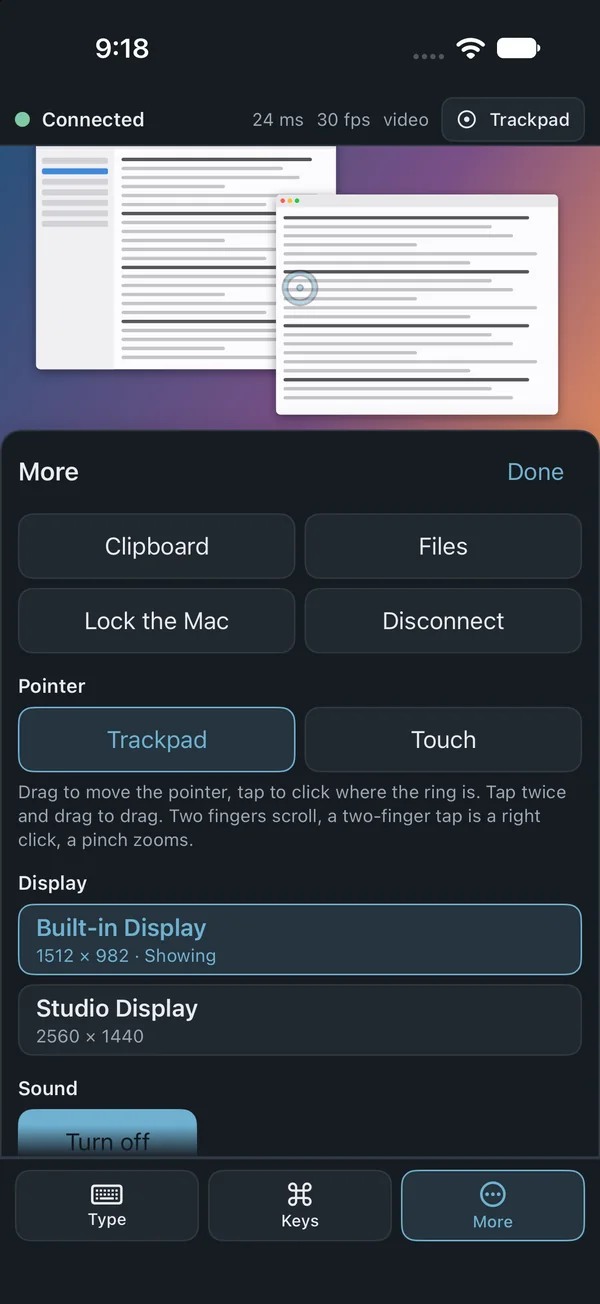
Everything else in MoreClipboard, files, displays, sound, locking the Mac and disconnecting. -
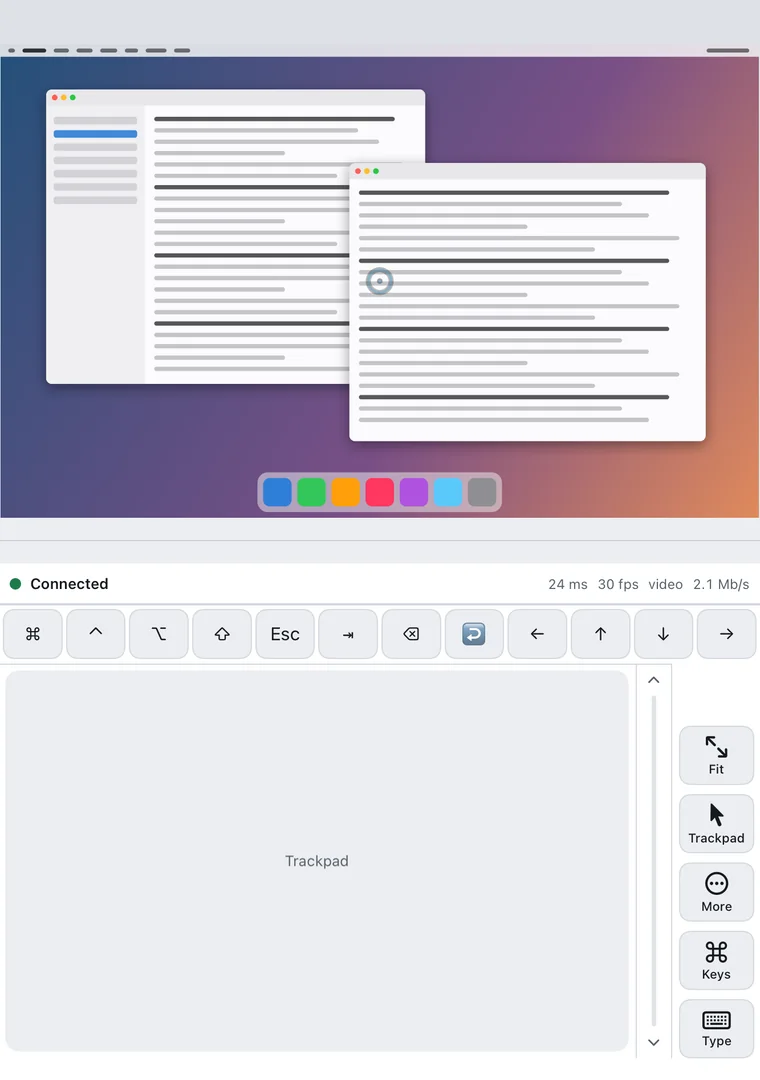
Ready for foldablesHalf-folded like a laptop, the picture goes above the fold and the keys and trackpad below. -
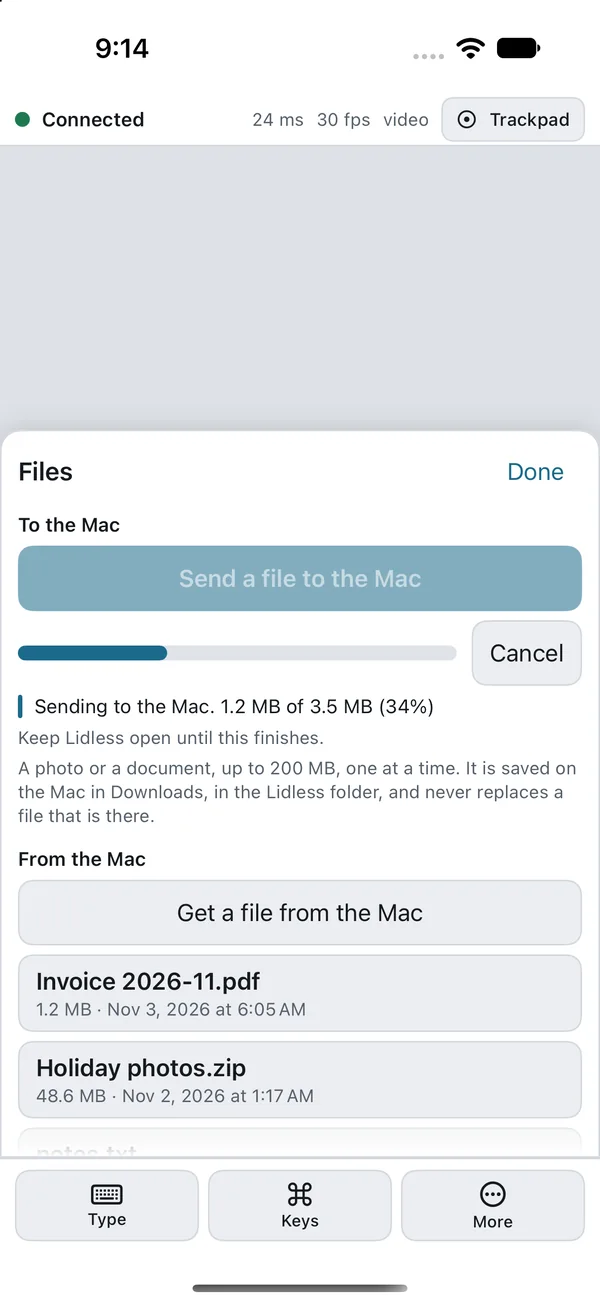
Files, both waysUp to 200 MB each. You only see the files the Mac chose to share. -
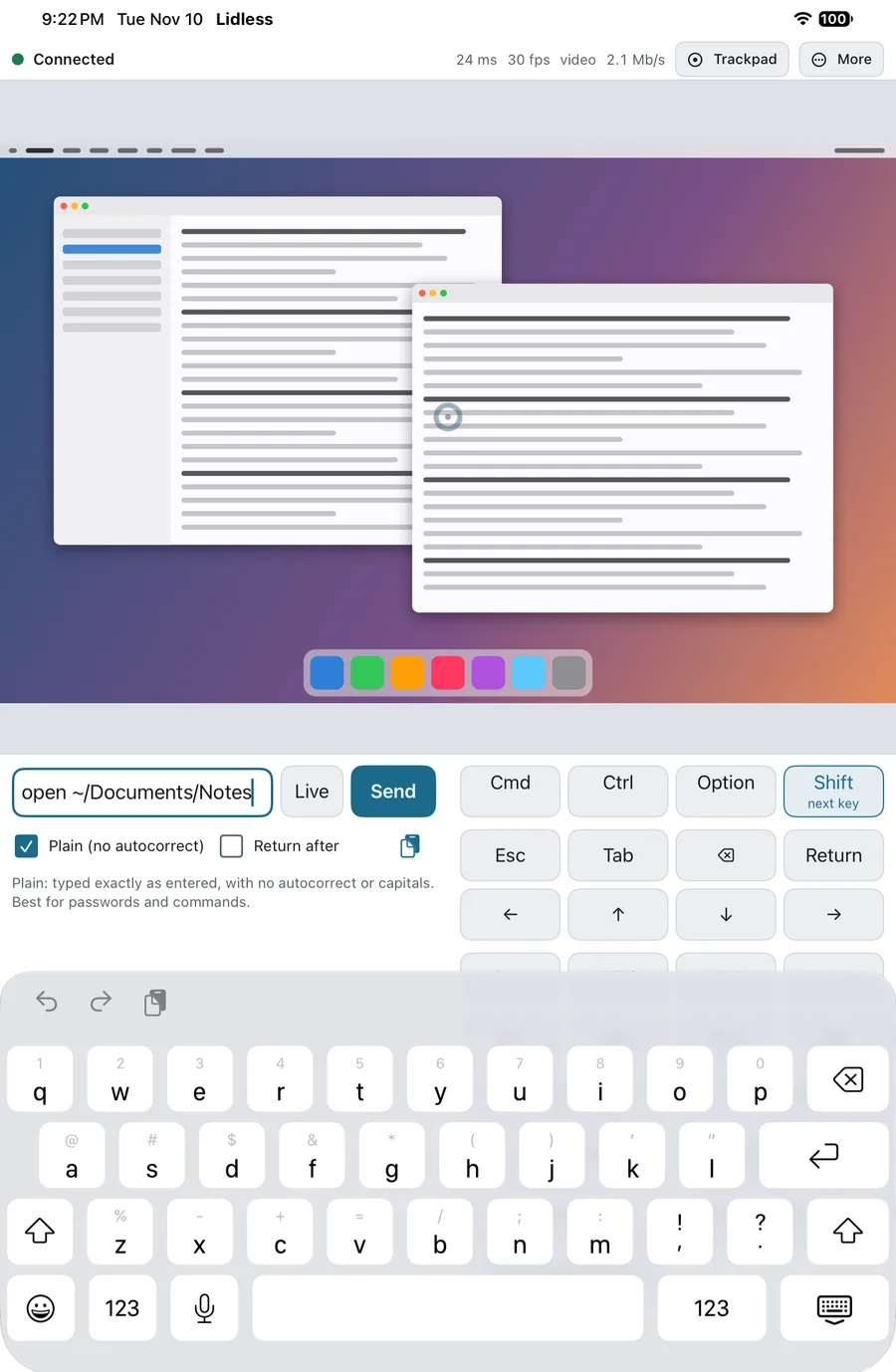
At home on iPadThe type bar and keys sit side by side, and a hardware keyboard and mouse work too. -
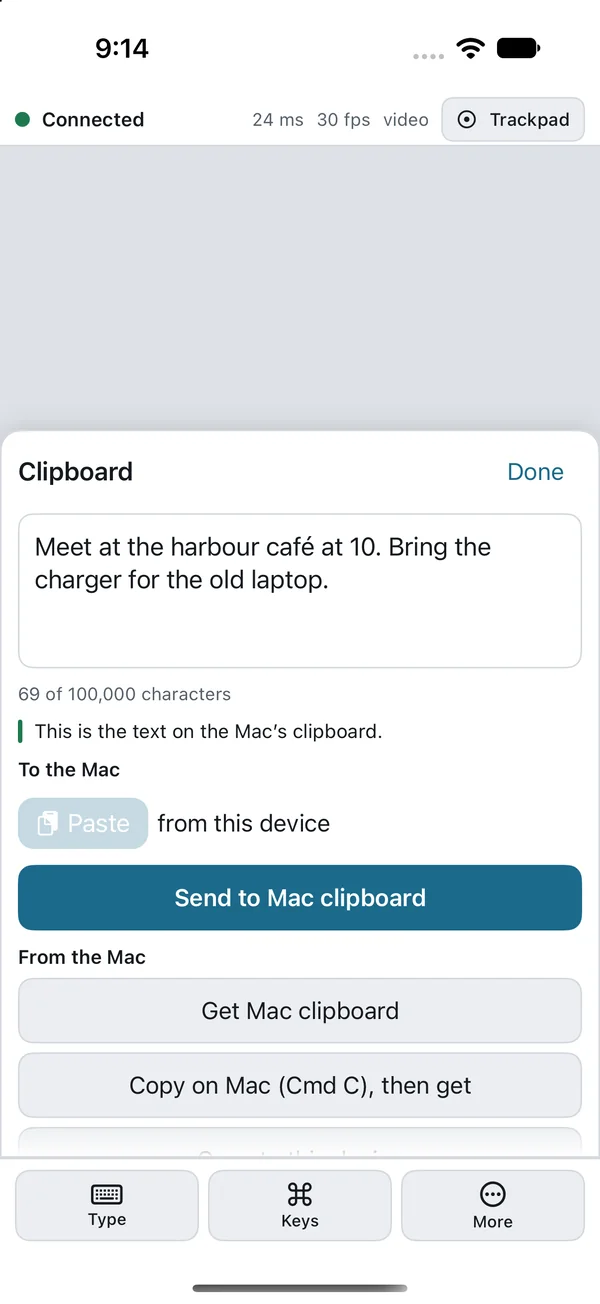
Clipboard, when you askNothing is read or changed on either side until you press a button. -
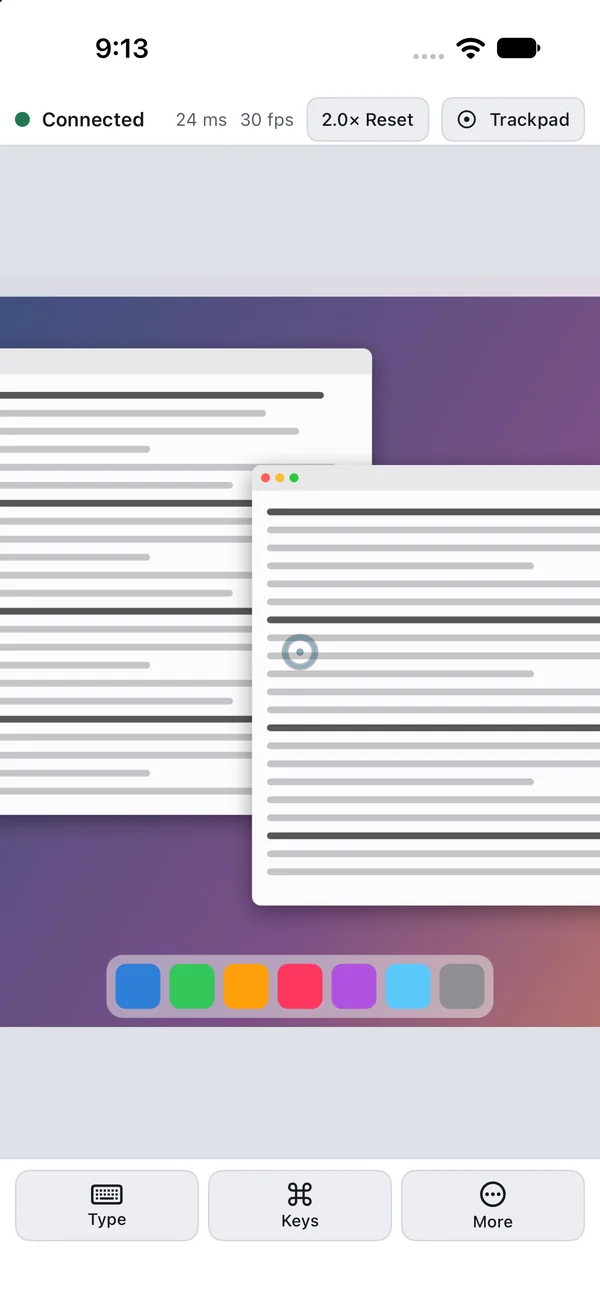
Zoom in on small textPinch to get closer, and press Reset to see the whole screen again. -
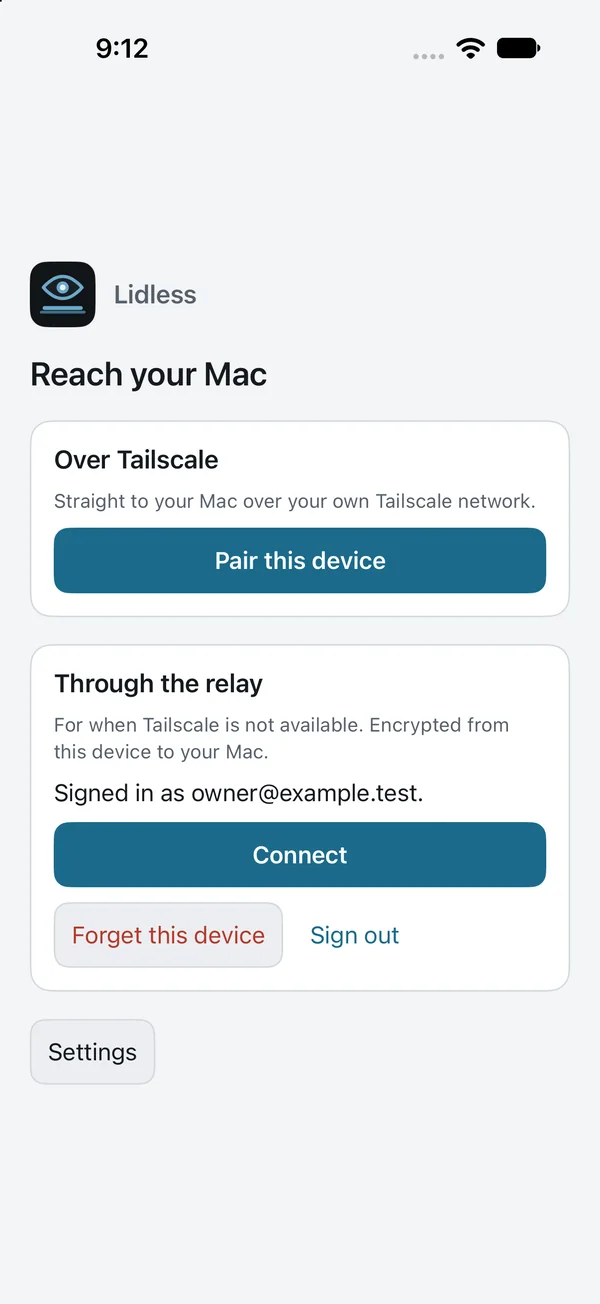
Tailscale or the relayPair straight over your own Tailscale network, or connect through the relay.
Screens from the Lidless app in Apple's simulators. The Mac desktop in them is a demo picture, and the names and files are made up. The foldable views show the app's layout for those postures in the simulator; it hasn't been tried on a real foldable yet.
What you can do
The things you'd reach for at the Mac itself, sized for a phone.
-
The screen, live
Smooth video where your device supports it, still pictures when you'd rather save data. Latency and frame rate show in the status strip.
-
Trackpad or touch
Drag to move the pointer and tap to click, or tap right where you want to click. Pinch to zoom in on small text.
-
A proper keyboard
Modifier keys that lock, common shortcuts, and Plain mode for passwords and commands. A locked Mac can be unlocked by typing its password.
-
Files, both ways
Up to 200 MB a file, checked when it arrives. What you send lands in Downloads / Lidless. The Mac decides what you can fetch.
-
Clipboard, on request
Text only, and only when you press a button. Anything a password manager marks private is never sent.
-
Every display
Switch between the Mac's screens from your device.
-
The Mac's sound
Hear what the Mac is playing, if you turn it on. Never the microphone.
-
Fit to your screen
Switch the Mac's display to a shape that fits your device. It's always put back when you're done.
-
Hide the Mac's screen
Cover the display while you work from afar. A courtesy, not a lock: someone at the Mac can still use it. Off unless you turn it on.
-
Locks when you leave
The Mac locks itself when the device in control disconnects. You can turn this off.
-
See who connected
The Mac lists its last five sessions: which device, when, for how long, and which way it came in.
-
Every shape of iPhone and iPad
Any orientation and window size, foldables open, closed or half-folded, and iPad with a keyboard and mouse.
Your screen stays between you and your Mac
Each device is approved at the Mac with Touch ID or your password, and you can revoke it there at any time. What you see and type is encrypted on your device and on your Mac. There are no analytics, no ads and no tracking, and this site sets no cookies.
Passes through the relay, sealed
Your screen, sound, typing, clipboard, files, and the names of your phones, iPads and browsers. The relay forwards them and can't read them.
Kept on the relay
Your email address, the names of your Macs, when they were last seen, and short-lived usage counts. Delete your account and it's gone.
What you need
- A Mac
- macOS 14 Sonoma or later, on, awake and online. Lidless asks for Screen Recording and Accessibility. If you let devices hide the Mac's screen, it also asks for Input Monitoring, only to notice when you hold Escape.
- iPhone or iPad
- iOS or iPadOS 18 or later, for the app.
- Or any browser
- A current browser on a phone, tablet or computer. Private windows can't set up the relay, because the browser has to remember the device.
- Tailscale, if you like
- Only for the direct path, on the Mac and on your device. The relay works without it.
Get Lidless
Free, with no account tiers and nothing to upgrade.
Lidless for Mac
The menu-bar app your devices connect to. It will be a signed and notarized download for macOS 14 or later.
iPhone and iPad
The native app, on the App Store, for iOS and iPadOS 18 or later.
Any browser
Needs the Lidless Mac app, so for now it's for testers. Then you can use it at relay.getlidless.com on a phone, tablet or another computer. New sign-ups are limited while Lidless is in early testing.
Testers: sign inQuestions
Something else? See Support or write to support@getlidless.com.
Should I use Tailscale or the relay?
If you already use Tailscale, the direct path is the most private: your device talks straight to your Mac over your own tailnet, and the Mac serves the page itself. Only devices signed in to Tailscale as the same user as the Mac can reach it.
The relay is for everyone else, and for when Tailscale isn't available. Nothing to install besides Lidless, it works on most networks, and the session is still end-to-end encrypted.
Is it really free?
Yes. There are no ads, no paid tiers and no tracking. To keep the relay free, it has a daily allowance; the Mac's menu shows how much of today's allowance you've used. The Tailscale path doesn't use the relay at all.
What can the relay see?
It can't see your screen, sound, typing, clipboard, files or device names. Those are encrypted between your device and your Mac. Like any server, it does see IP addresses, when connections start and end, and how much data passes.
One honest caveat: the browser version is served from the same place as the relay. Someone in control of that server could in theory change the page you load. The iPhone and iPad app doesn't load code from the web, and on the Tailscale path your Mac serves the page itself. The privacy policy has the details.
Does my Mac need to stay awake?
Yes. If your Mac is asleep or off, Lidless can't reach it. Lidless doesn't change your sleep settings, and it doesn't keep a MacBook awake with the lid closed. While a device is in control, Lidless keeps the display on.
To reach a MacBook with its lid closed, the Mac's system sleep has to be turned off. Lidless only checks this. If sleep is still on, your device warns you and suggests Mac Awake, a separate menu-bar app that controls that setting. Any other way of turning system sleep off works too.
Could someone else get into my Mac?
Every new device has to be approved at the Mac, and approving needs Touch ID or your Mac's password. You can revoke any device from the Lidless menu, pause Lidless, or turn the relay off, and it takes effect immediately.
Can I sign up today?
Not quite yet for everyone. Lidless is in early testing, so new relay accounts are limited for now. The Mac app and the iPhone app are coming soon.
Can I control it from Windows or Android?
Yes, in the browser. Any current browser can be the remote. The computer you control has to be a Mac.